Independent app · not made by TP-Link

View your Tapo cameras on your Windows PC

The Tapo app is made for phones. CamOnPC is a simple Windows app that shows your Tapo and other RTSP cameras live on your computer, side by side, and records to your own disk.

  • Finds cameras on your home network by itself
  • Up to 16 cameras on one screen
  • Records to MP4 files on your PC
  • Pan and tilt with on-screen arrows
  • No cloud, no account, no subscription
Coming soon to Microsoft Store See how it works

Windows 10 and 11 (64-bit) · free for 7 days, then US$9.99 once

CamOnPC—☐✕
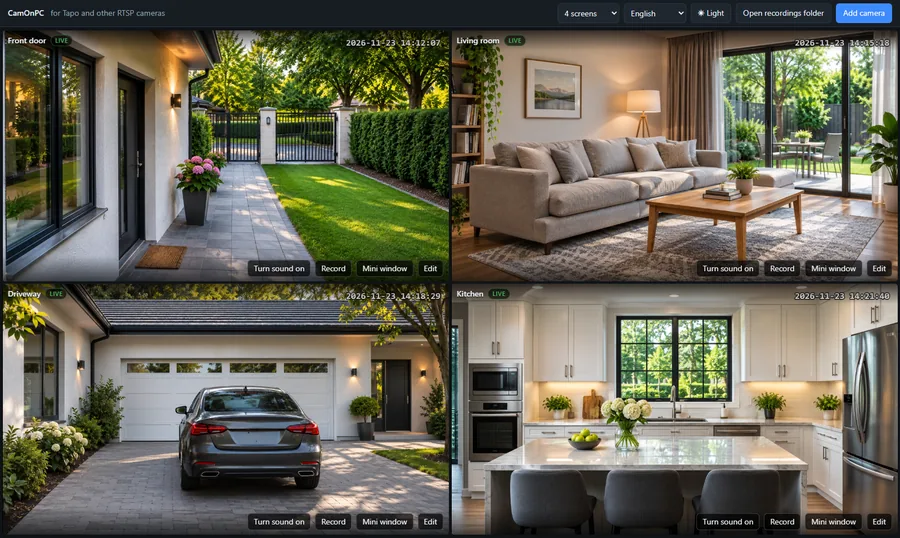
CamOnPC on Windows showing four cameras live: front door, living room, driveway and kitchen

Everything you need to watch your cameras on a PC

Open it and your cameras are there, live, in a normal window that you can keep next to your work.

Auto discovery

Click Add camera and CamOnPC looks for cameras on your home network.

Multi-view

Layouts of 1, 2, 4, 6, 8, 9 or 16 screens. Drag cameras to rearrange them.

Recording

One click records to MP4 files in your Videos folder, with sound.

Pan and tilt

On-screen arrows turn cameras that can pan and tilt.

Zoom and mini window

Zoom with the mouse wheel, or keep one camera on top of your other programs.

See it working

These are pictures of the app itself. The scenes in them are sample pictures, not anyone’s home.

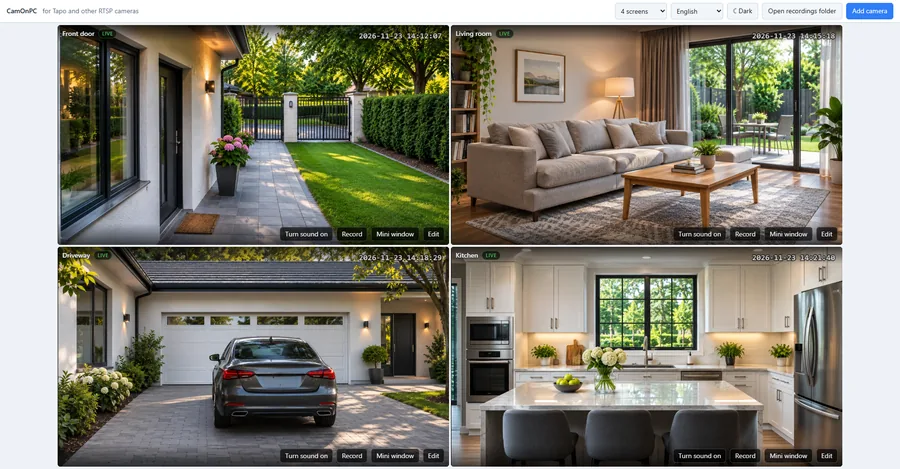
Four cameras side by side in the light look
All your cameras, liveLight or dark, whichever you like.
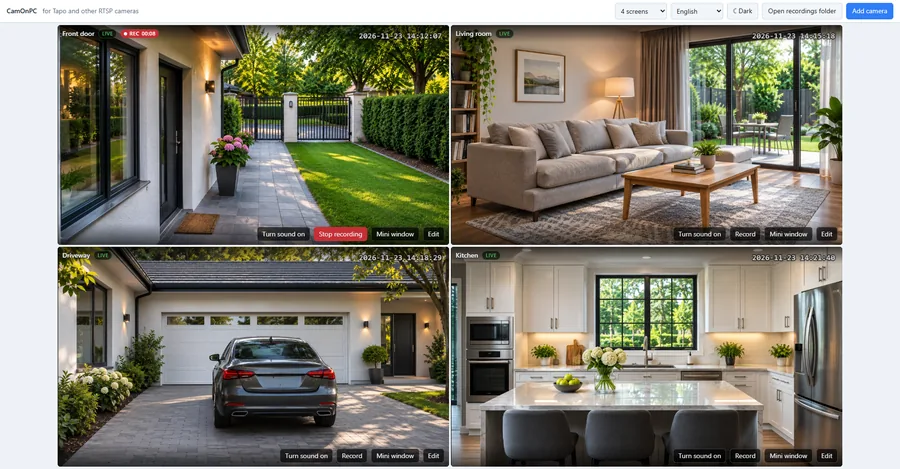
A camera recording, with a red REC timer on its picture
Record with one clickFiles stay on your own disk.
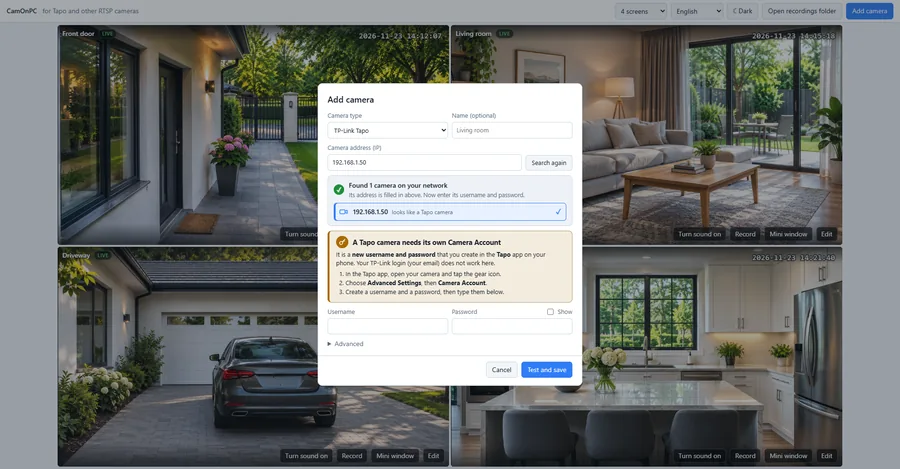
The Add camera form after it found a Tapo camera on the network
Finds your cameras for youAnd tells you where the login comes from.

Set up in three steps

  1. Create a Camera Account

    In the Tapo app on your phone open the camera, then Settings › Advanced Settings › Camera Account, and create a username and a password.

  2. Click Add camera

    CamOnPC searches your home network and fills in the camera it finds. You can also type the camera’s address yourself.

  3. Enter the username and password

    The same two you created in step one. Press Test and save, and the picture appears.

A longer version, with what to check when it does not connect: How to create a Tapo Camera Account and turn on RTSP.

Supported cameras

CamOnPC uses the standard RTSP connection that the camera itself offers, and ONVIF for pan and tilt.

Works with

  • TP-Link Tapo cameras that are powered from the mains, for example C100, C110, C200, C210, C220, C310, C320WS, C500, C510W and C520WS.
  • Lorex, Dahua, Imou, Amcrest and Hikvision recorders and cameras, including several cameras on one recorder.
  • Reolink cameras and any other camera that offers a standard RTSP stream.

Tested by us on a Tapo C210 and on a Lorex recorder.

Good to know

  • Battery-powered cameras (for example Tapo C410, C420, C425 and D230) do not offer the connection CamOnPC needs.
  • The PC and the cameras must be on the same home network.
  • A Tapo camera can do only two of these three at once: Tapo Care, memory-card recording, and video to a program such as CamOnPC.
  • CamOnPC does not play back recordings stored on the camera’s memory card or in a cloud plan.

Private by design

Your cameras are your business.

Video stays at home

It goes straight from your camera to your PC over your own network. Nothing is uploaded.

No account, no cloud

There is no CamOnPC account to create and no service that can see your cameras.

Passwords kept safe

Camera passwords are stored encrypted on your PC by Windows.

One price, no subscription

US$9.99 once

  • Free for 7 days, with every feature
  • Then a one-time payment through the Microsoft Store
  • No monthly fee, no cloud plan
Coming soon to Microsoft Store

Windows 10 and 11 (64-bit). The price can differ a little from country to country.

Guides

Questions and answers

Is there an official Tapo app for Windows?

No. TP-Link makes the Tapo app for iPhone and Android only, and its own help pages say the app is not available for computers. CamOnPC is a separate program from an independent developer. It connects to your cameras directly over your home network, the way TP-Link describes for third-party software.

Is CamOnPC made by TP-Link?

No. CamOnPC is an independent product and is not made, endorsed or supported by TP-Link. It does not use your TP-Link account or the Tapo cloud.

Is it free?

You can use every feature free for 7 days. After that it is a one-time payment of US$9.99 through the Microsoft Store. There is no subscription. The price can differ a little from country to country.

Which Tapo cameras work?

Tapo cameras that are powered from the mains and offer RTSP, for example the C100, C110, C200, C210, C220, C310, C320WS, C500, C510W and C520WS. We tested with a Tapo C210. Battery-powered models such as the C410, C420, C425 and D230 do not offer the connection CamOnPC needs.

What do I have to set up on the camera?

One thing: a Camera Account. In the Tapo app open the camera, go to Settings, then Advanced Settings, then Camera Account, and create a username and a password. You type the same two into CamOnPC. This is not your TP-Link login. Step-by-step guide.

My camera will not connect. What should I check?

The camera and the PC must be on the same home network. The Camera Account must exist, and the username and password must be typed exactly. A Tapo camera can do only two of these three things at once: record to Tapo Care, record to a memory card, and send video to a program such as CamOnPC. If yours uses both Tapo Care and a memory card, switch one of them off.

Can I watch my cameras when I am away from home?

No. CamOnPC shows cameras that are on the same network as the PC. It does not send video over the internet.

Where do recordings go?

Into your Videos folder, as ordinary MP4 files with sound. CamOnPC records what it sees while it is running. It does not play back recordings stored on the camera’s memory card or in a cloud plan.

Does it work with cameras from other makers?

Yes. It works with recorders and cameras from Lorex, Dahua, Imou, Amcrest and Hikvision, including several cameras on one recorder, with Reolink cameras, and with any camera that offers a standard RTSP stream.

Is my video sent anywhere?

No. Video goes from your camera to your PC over your own network and stays there. There is no CamOnPC account and no cloud. Privacy statement.